


Create your space
Name your shop and choose its appearance. Your dashboard is ready for your offer.
How it works, made simple
Set up your shop in one place. Customers find it in the SellViaApp application on Android and iOS. No app development is needed to get started.
From idea to mobile shop
Each step prepares the next. Move at your own pace.
Name your shop and choose its appearance. Your dashboard is ready for your offer.
Create product pages in the dashboard or link an existing system through a suitable integration.
Get its link or QR code and invite customers to open SellViaApp.
Find your products, customers and orders in your dashboard.
Your merchant dashboard
Once your shop is created, use the same dashboard on a computer or in the mobile app in owner mode: add products, follow orders and configure your shop from your phone.
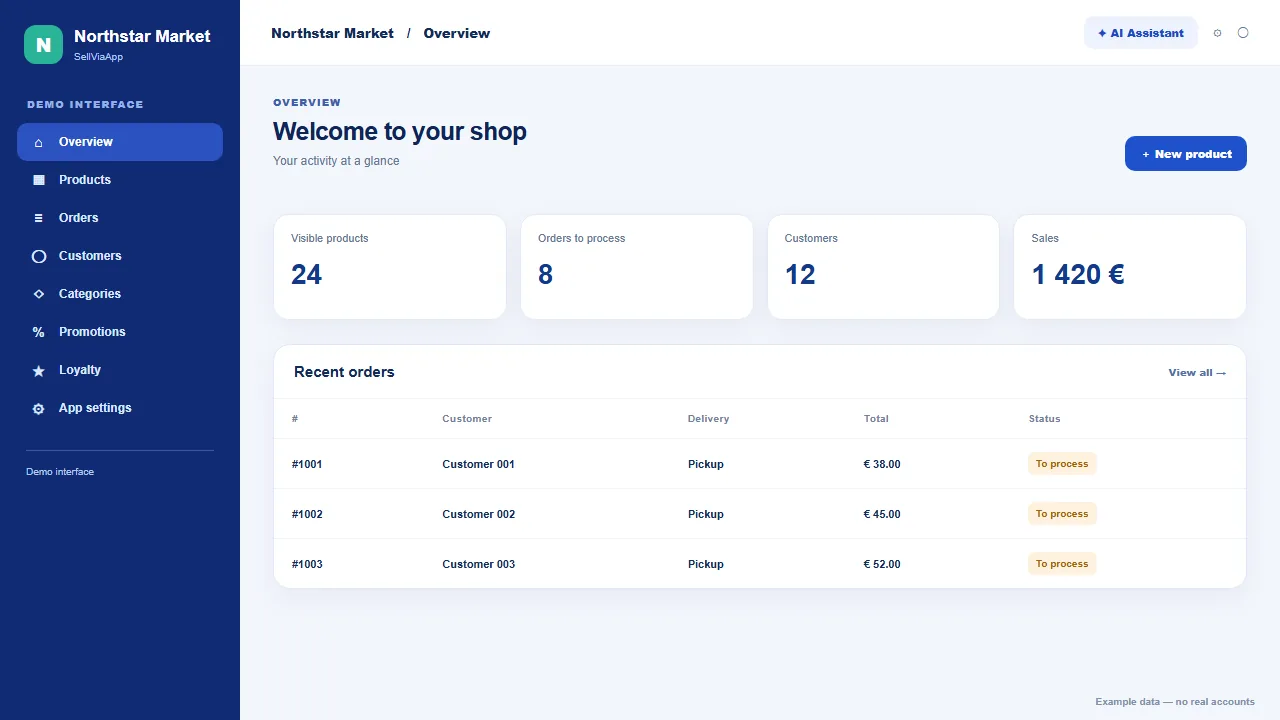
The menu opens products, orders, customers, categories, promotions, loyalty and settings. Key figures and recent orders are visible at a glance.
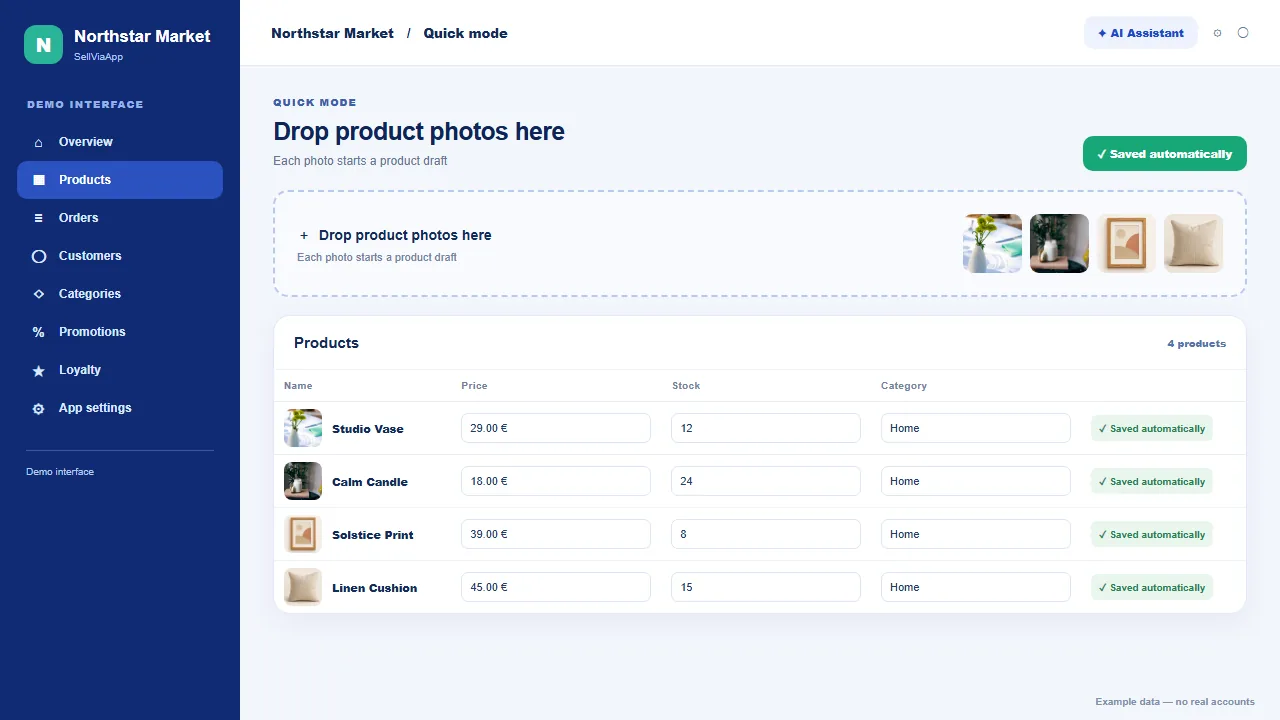
In Quick mode, drop images from a computer or take photos on mobile. Fill in names, prices, stock and categories in a list that saves automatically.
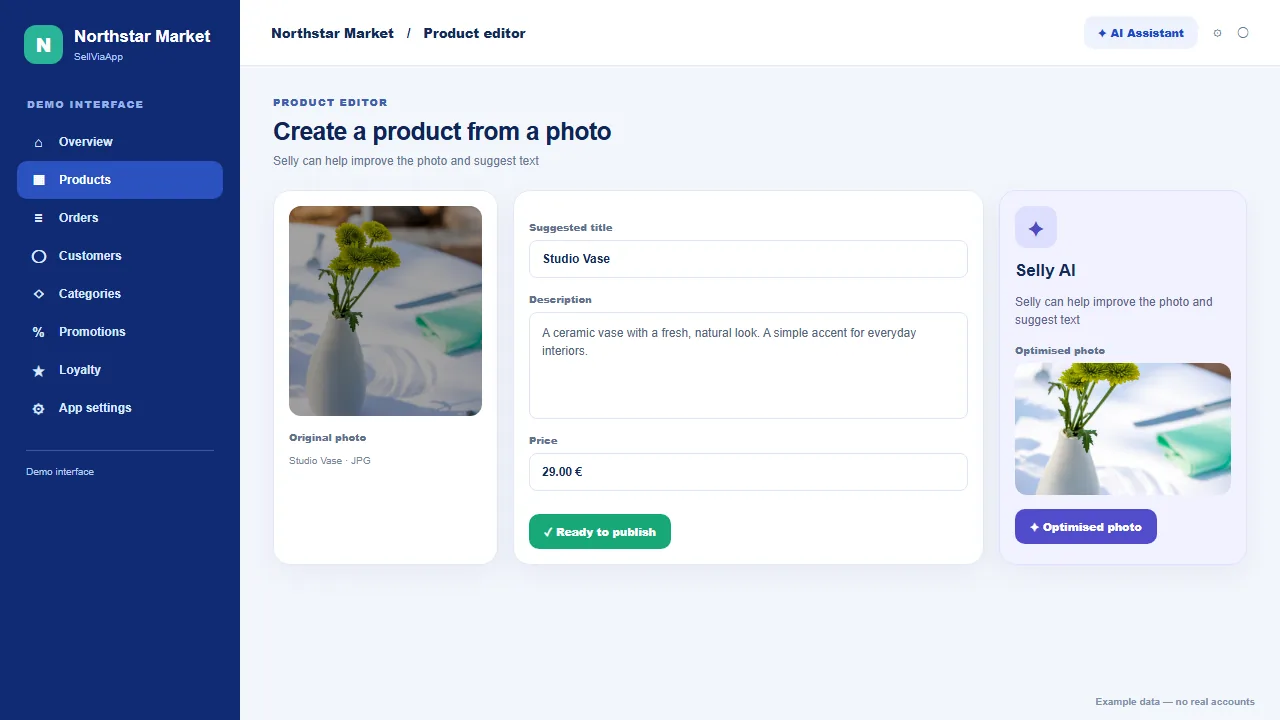
From a photo, the AI assistant can suggest a title, description and optimised image. You review the listing before publishing it.
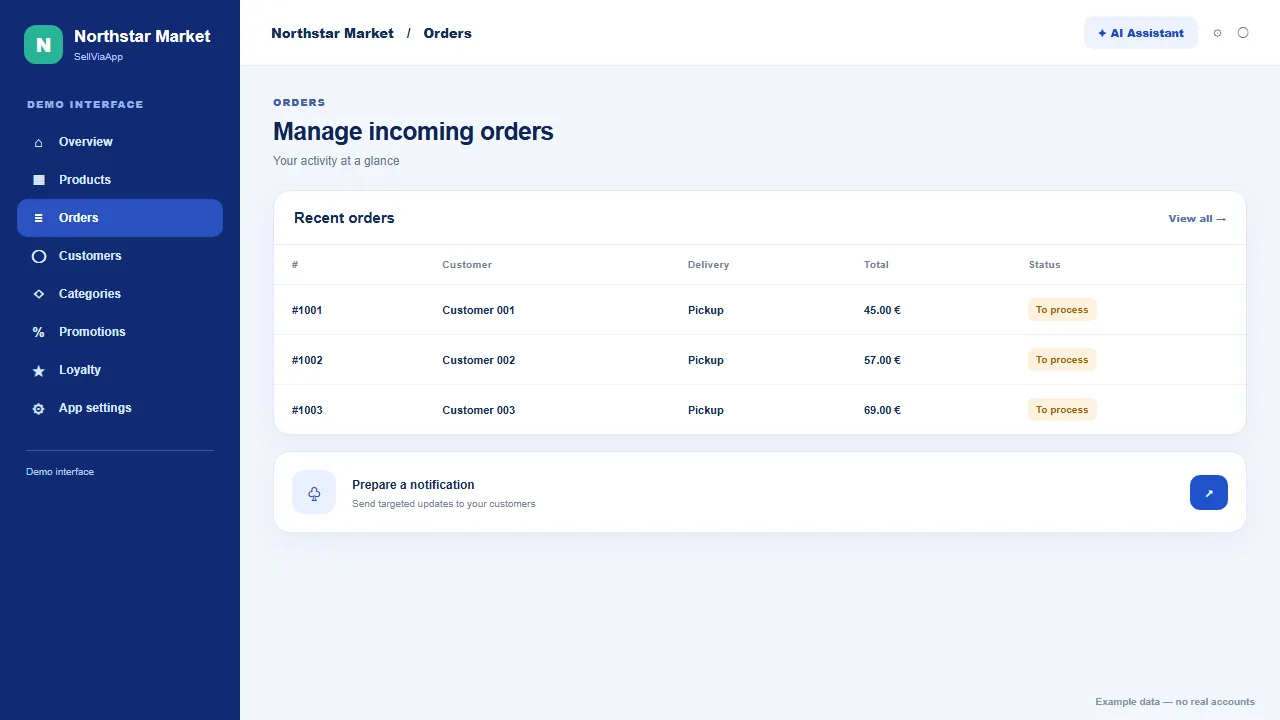
Review incoming orders and customer records, then prepare targeted notifications for people using your shop.
Why it is simple
SellViaApp is already published on Android and iOS. Your shop lives inside this shared application.
Enter products directly, with optional help from Selly, or connect your existing tool.
Update your offer and review activity in the web dashboard or through owner access in the app.
A photo and essential details are enough to start a product page. Selly can suggest content that you review before using.
Create my mobile shop →Keep your current tool and choose from the available integrations. Exchanged data varies by connector.
Explore integrations →Day to day
Add or edit a product in the dashboard and your shop offer is updated in SellViaApp. When a customer orders, you can see it in your management space. You do not need to publish a new app for each shop or catalogue change.
For customers
Share your shop link or QR code. If the app is installed, the link can open your space directly; otherwise the page offers Android and iOS downloads. Customers can then return to the shops they use.
Depending on your settings, the shop is public or restricted to authorised accounts. Buying and contact journeys depend on the options you enable.

Share it anywhere
Download your shop’s own QR code from your dashboard. Display it in your store, on a parcel or on your website: customers scan it with their phone and find your shop in SellViaApp.
Your shop has its own link and QR code.
Shop window, counter, packaging or website: choose what works for you.
If the app is installed, the link can open your shop directly; otherwise the page offers Android and iPhone download links.
Video guide · English
Follow the journey from creating or connecting a mobile shop to inviting customers and keeping each business independent.
Create your space, prepare your offer and invite customers to find it in SellViaApp.
Try it before you start
Browse examples for different businesses and open them in the SellViaApp mobile app.
